LabCanvas Optics: draw optical setups with the beam path simulated live
How to build optical setup diagrams in LabCanvas Optics: lasers, lenses, mirrors, beam splitters, gratings and detectors on a breadboard, rays and beams traced as you move parts, interference, ready-made setups and clean schematics for figures.
Contents
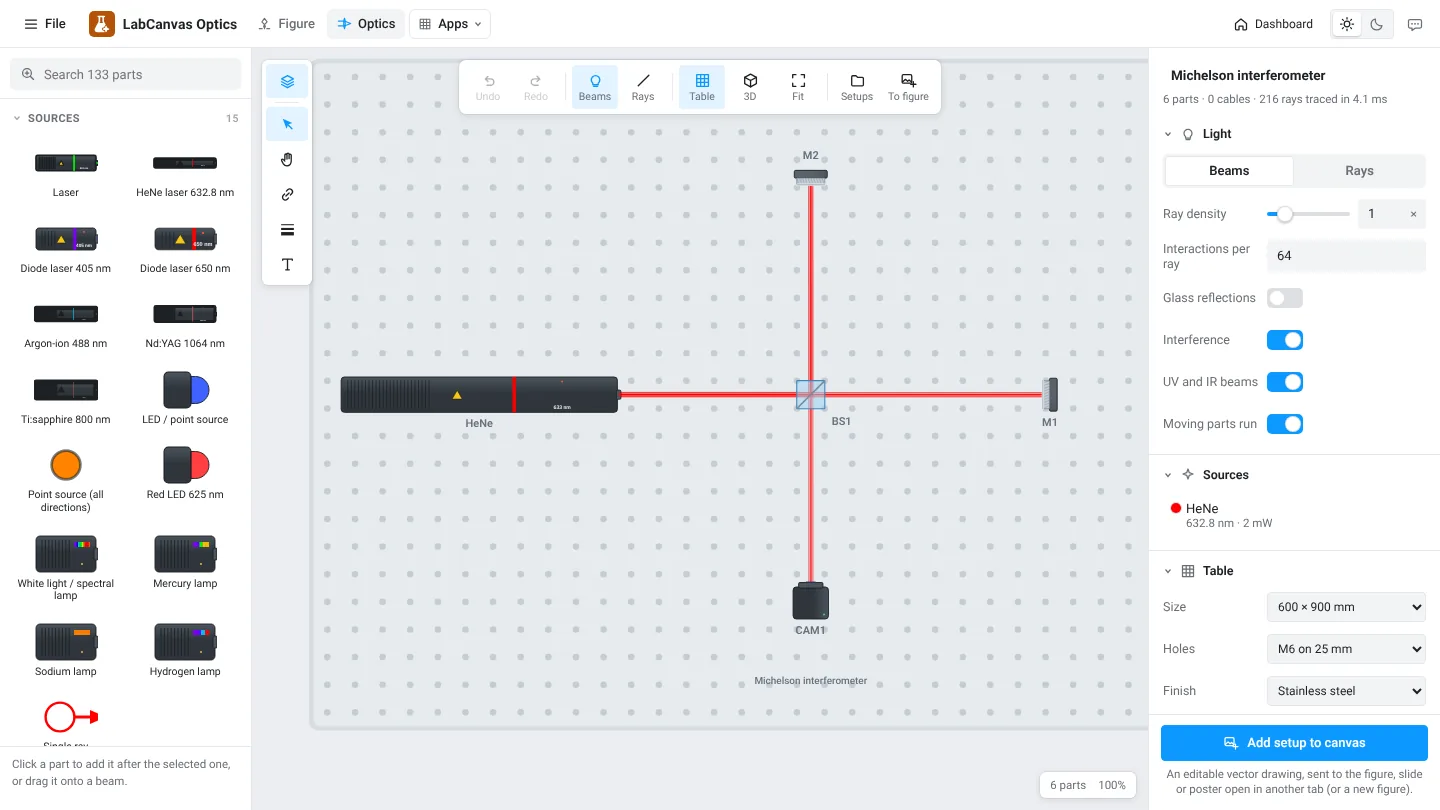
LabCanvas Optics is an app for optical setups: place lasers, lenses, mirrors, beam splitters, gratings and detectors on a breadboard and the beam path is traced live as you move them. It is a drawing tool for clean setup schematics and a quick simulator for checking that a layout works. Setups go into figures as editable vector drawings.
Ready-made setups
Open an example and change it, or start with an empty table.
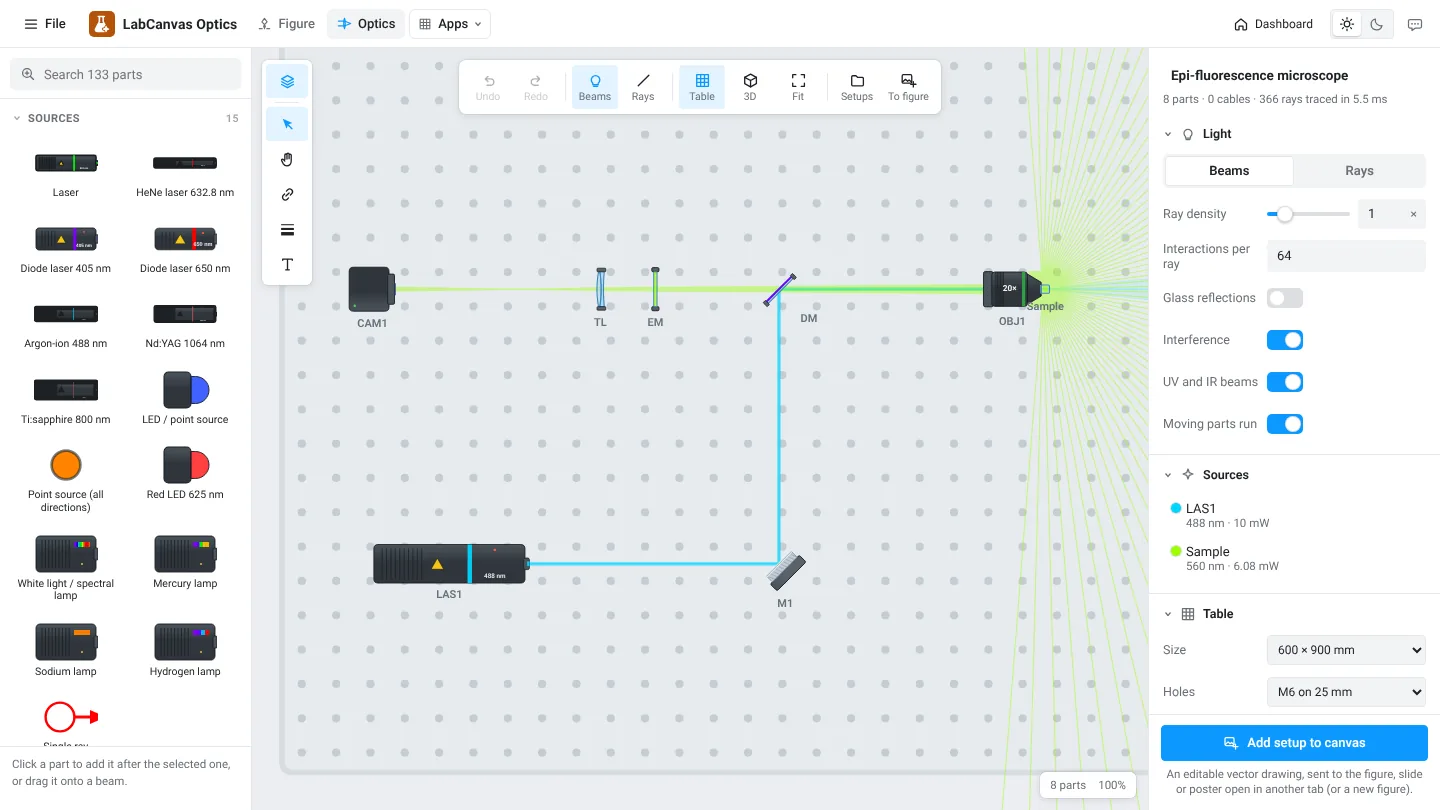
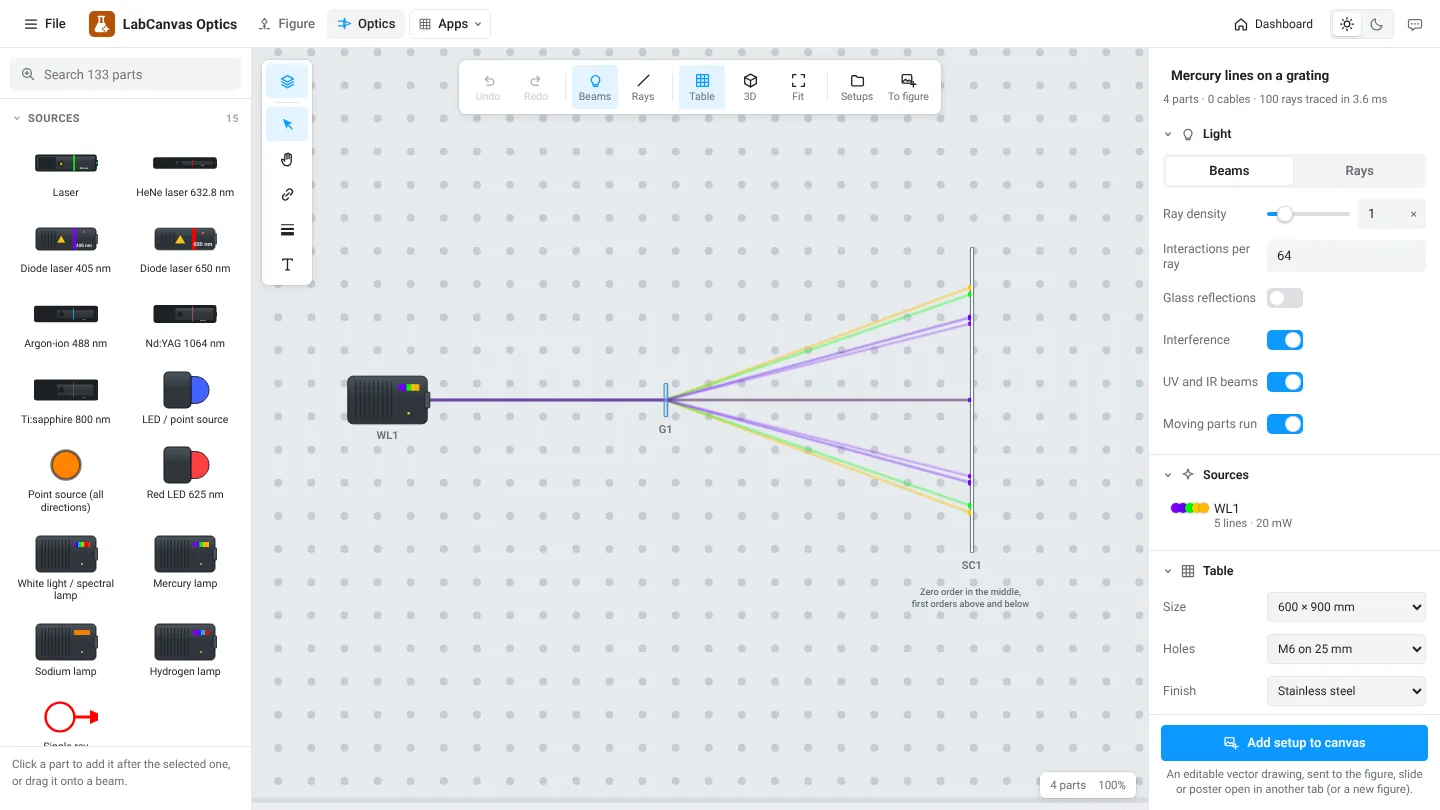
Other examples: Mach–Zehnder interferometer, Keplerian beam expander, spatial filter, prism spectrum, polarization with a half-wave plate and a polarizing beam splitter, fibre coupling, frequency doubling from 1064 to 532 nm, galvo scanning and a double slit.
Parts
| Group | Examples |
|---|---|
| Sources | HeNe 632.8 nm, diode lasers, argon-ion, Nd:YAG, Ti:sapphire, LEDs, mercury and sodium lamps |
| Lenses | Plano-convex, bi-convex, aspheres, achromatic doublets, cylindrical and ball lenses, objectives, axicons |
| Mirrors | Metal and dielectric, spherical, parabolic, retroreflectors, galvo and polygon scanners, DMDs |
| Splitters and prisms | Cubes, plates, pellicles, polarizing beam splitters, dispersive and right-angle prisms, gratings |
| Filters and apertures | Iris, slits and pinholes, ND and colour filters, long-pass and laser-line filters |
| Detectors | Photodiodes, quadrant photodiodes, power meters, cameras, spectrometers |
| Electronics | Amplifiers, lock-in amplifiers, PID controllers, oscilloscopes, signal generators |
How to draw a setup
- Open Optics and pick an example or an empty table.
- Click a part in the left panel to add it after the selected one, or drag it onto a beam.
- Move and rotate parts; the beams follow live. Switch between Beams and Rays.
- Label parts and add dimension lines, arrows and enclosures.
- Click Add setup to canvas to send it to your figure.
Beams, rays and interference
The Beams view draws beams as coloured bands, as in a paper schematic. The Rays view shows the individual rays, useful for checking focusing and aberrations. With coherent sources and Interference on, the camera in an interferometer shows fringes that move when a mirror moves.
Frequently asked questions
What does LabCanvas Optics simulate?
Which parts are there?
Are there example setups?
How do I put the setup in my paper?
Is there a 3D view?
Try it in LabCanvas
Every app is free to start in your browser. Create an account and begin.
Open OpticsKeep reading
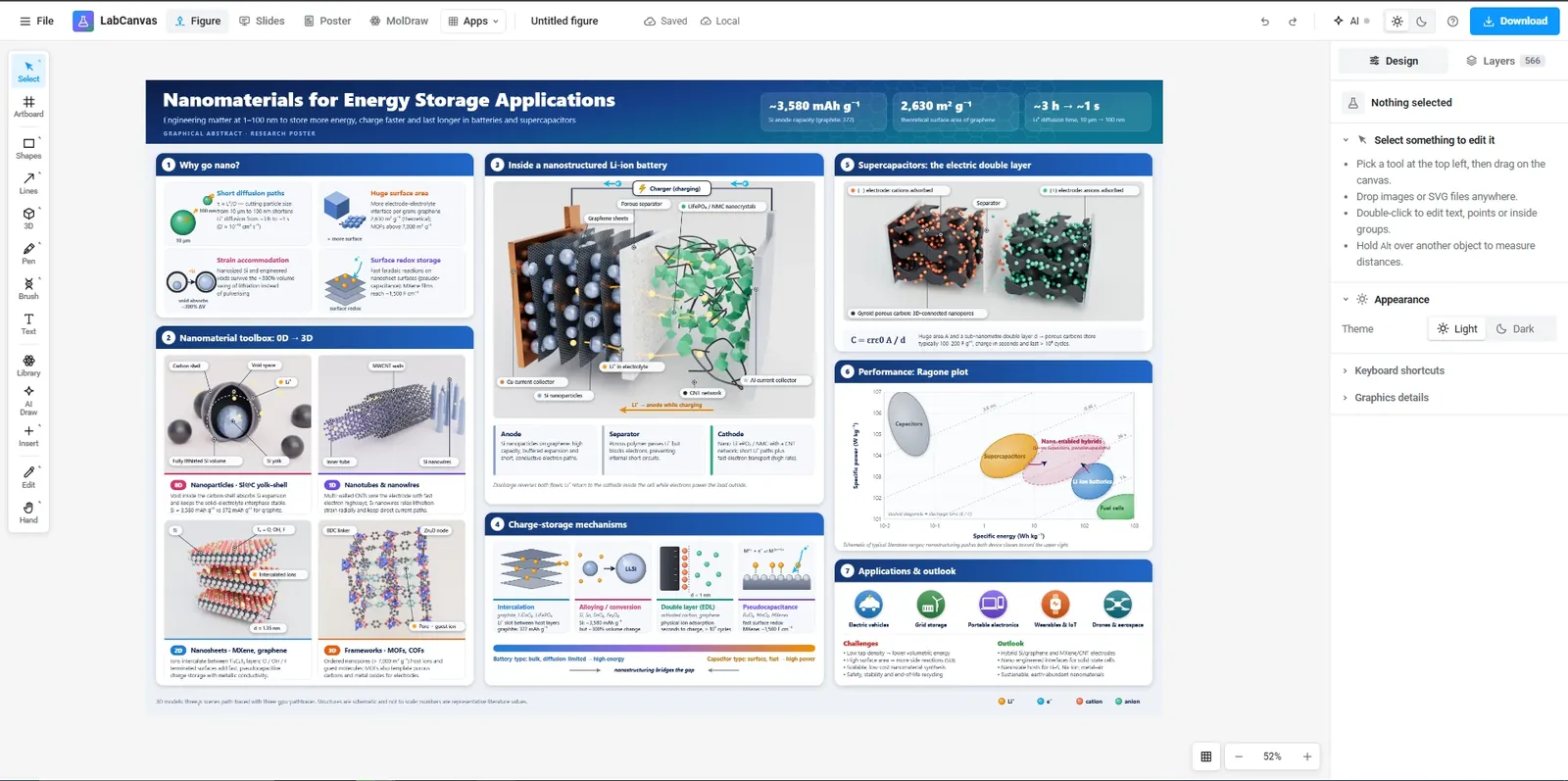
The LabCanvas Figure editor: vector scientific illustration in your browser
How to make journal figures and graphical abstracts in the LabCanvas Figure editor: vector tools, 700+ adjustable science objects, lab glassware that connects, LaTeX equations, and export at the width and DPI your journal asks for.
LabCanvas Slides: scientific presentations built from editable figures
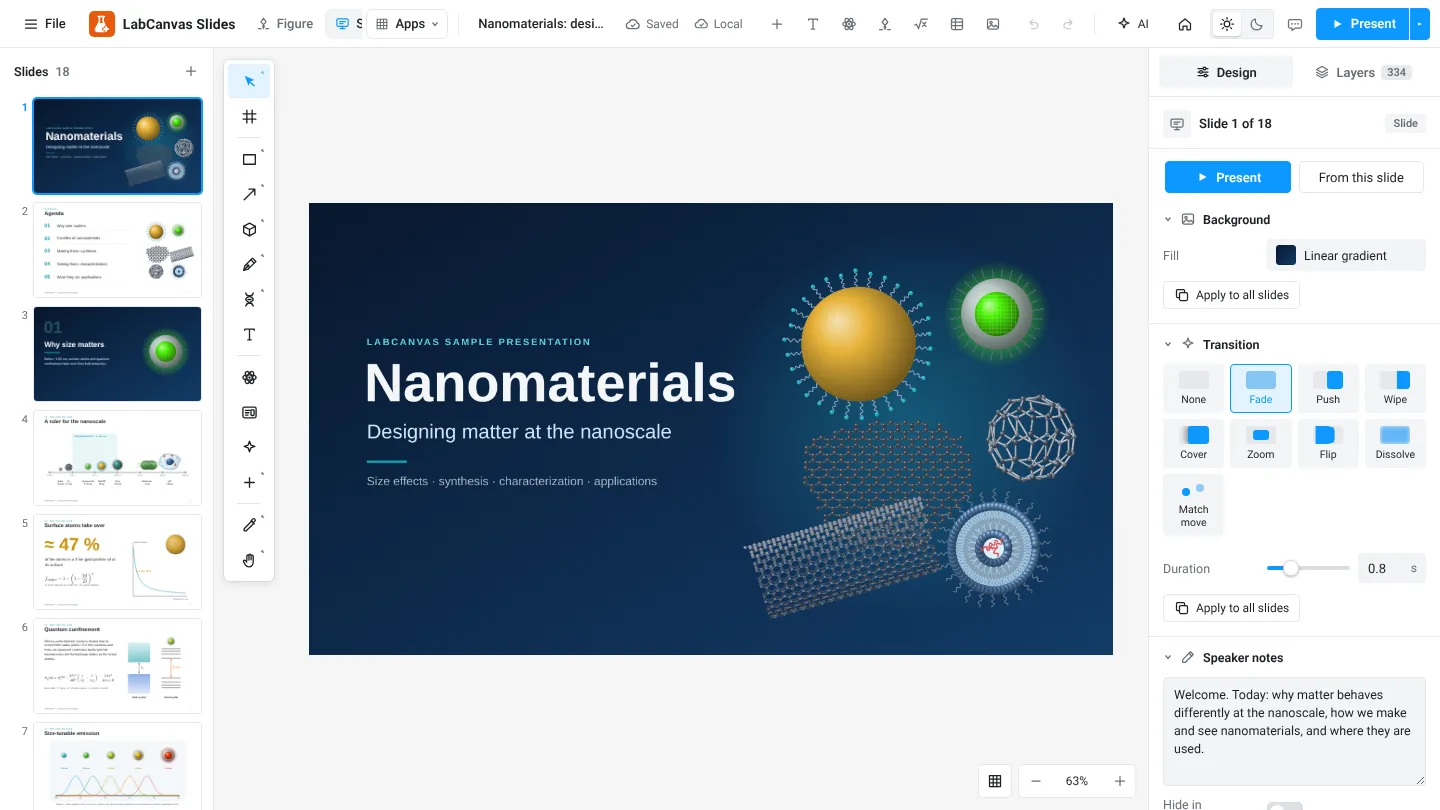
How to build lab meetings, conference talks and lectures in LabCanvas Slides: a slide strip, layouts and themes, transitions and motion paths, speaker notes, full-screen presenting and a vector PDF of the deck.
LabCanvas Research Poster: conference posters that arrange themselves
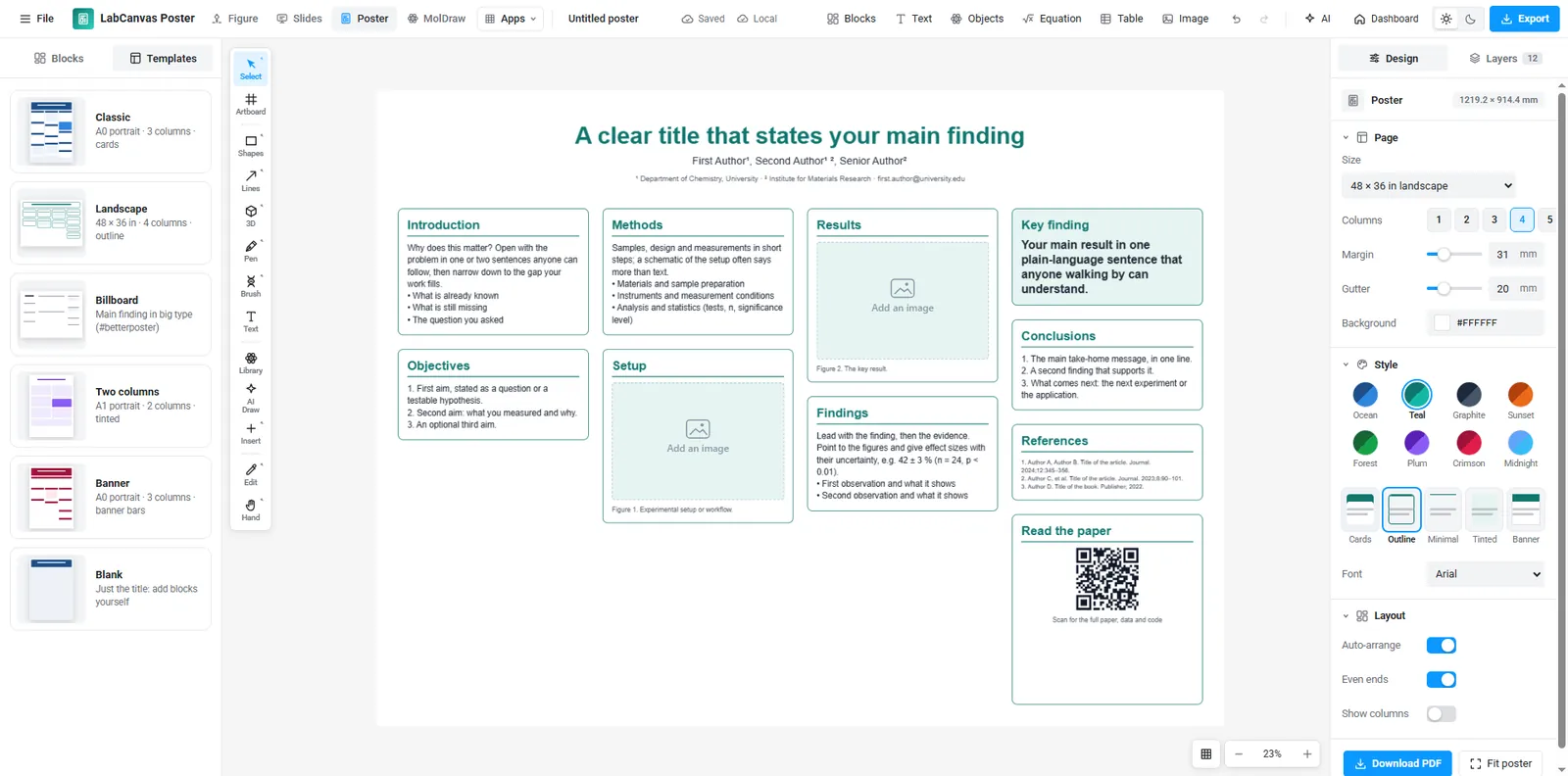
How to make an A0, A1 or 48 × 36 in research poster in LabCanvas Research Poster: blocks that stack in columns and re-flow their text, themes and block styles, QR codes, and a print-ready vector PDF.