The LabCanvas 3D Studio: adjustable 3D models of cells, nanomaterials and devices
How to make 3D scientific renders in the LabCanvas 3D Studio: adjustable models of cells, viruses, nanoparticles, 2D materials, MOFs and devices, molecules from PubChem, proteins from the PDB, crystals from CIF files, and renders placed in figures.
Contents
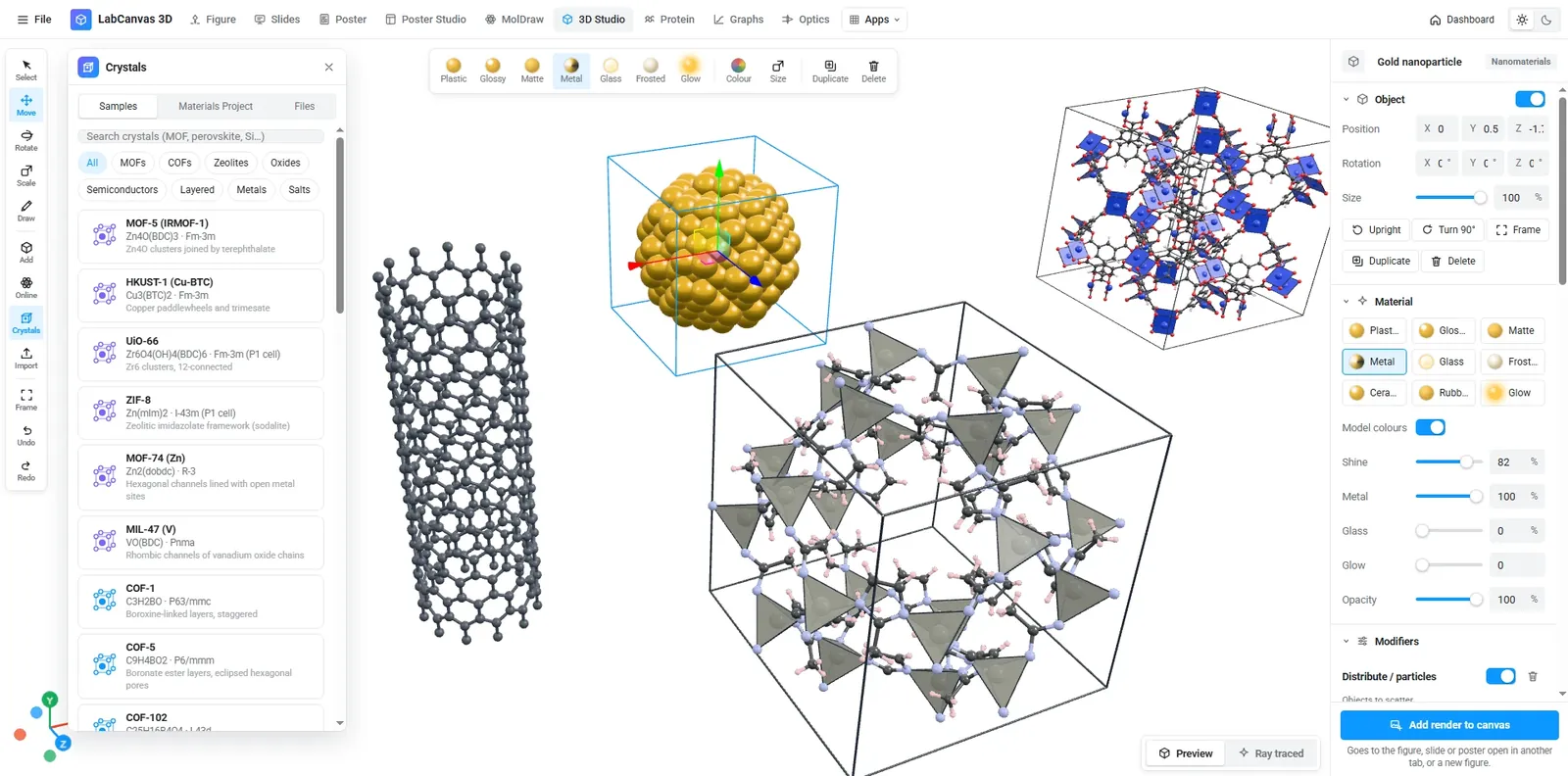
The LabCanvas 3D Studio makes 3D pictures for science without 3D modelling. Its models are generators: a gold nanoparticle, a liposome, a virus, a cell cut open, a MOF or a battery stack is built from settings you change with sliders. Molecules come from PubChem, proteins from the RCSB PDB and crystals from CIF and POSCAR files. Renders go straight into your figures.
Models by subject
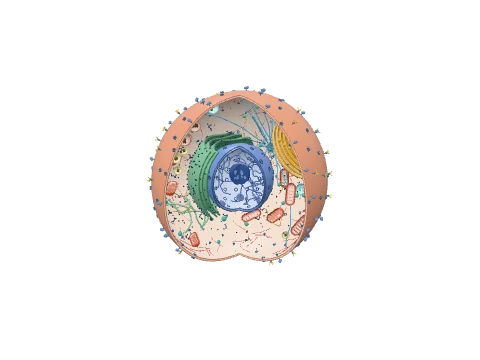
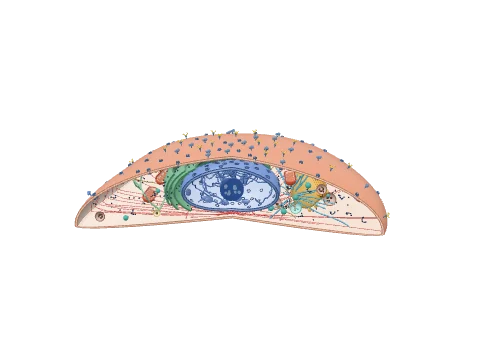
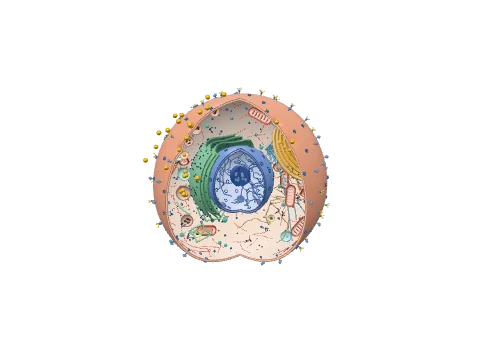
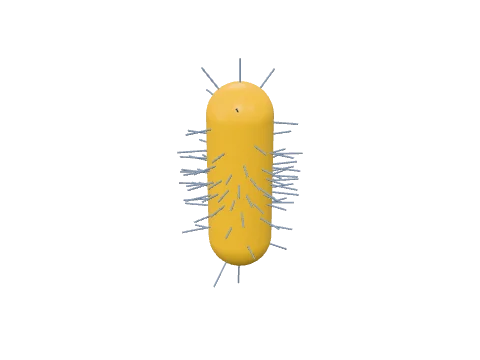
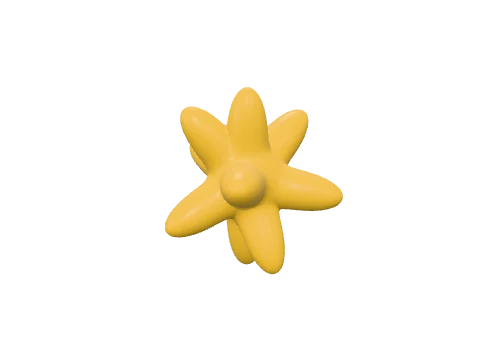
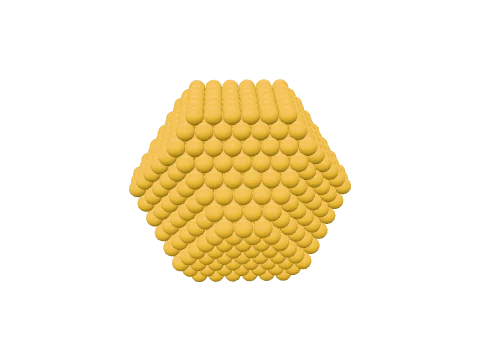
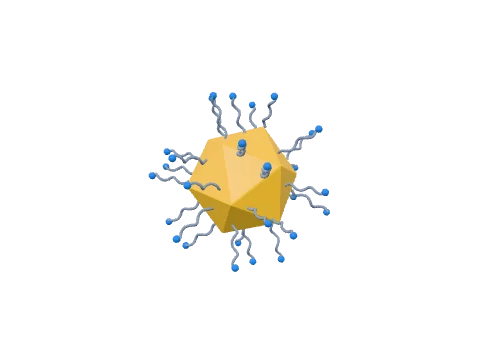
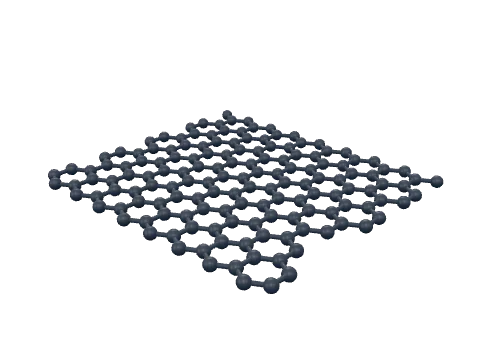
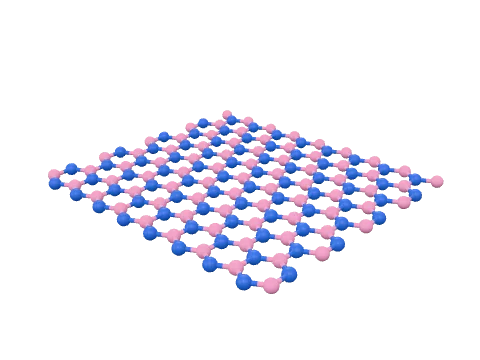
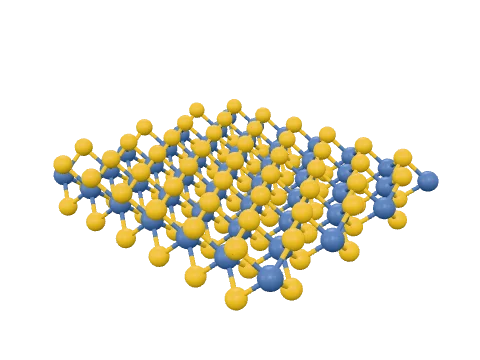
The Add menu groups the models by subject, each with a small picture so you can see what you add. Here are a few from each group.
Biology
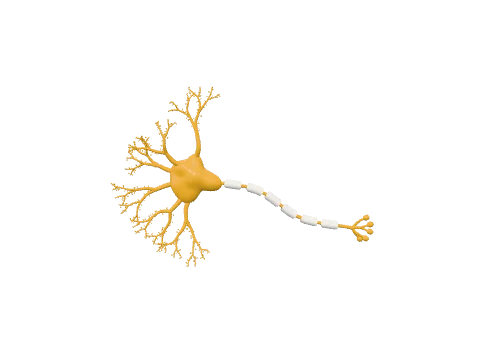
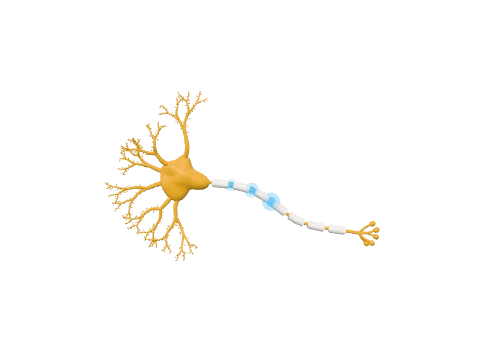
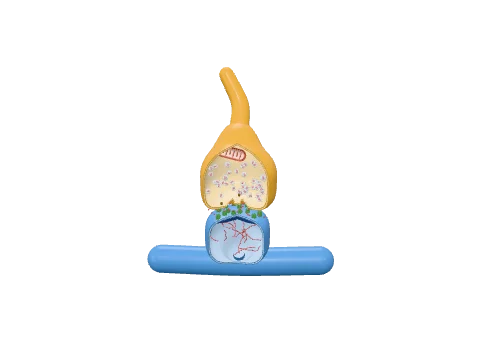
Nanomaterials
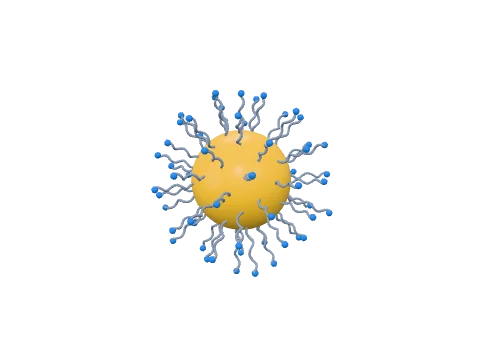
2D materials, catalysis and devices
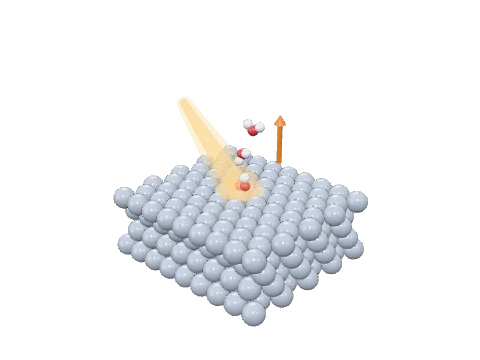
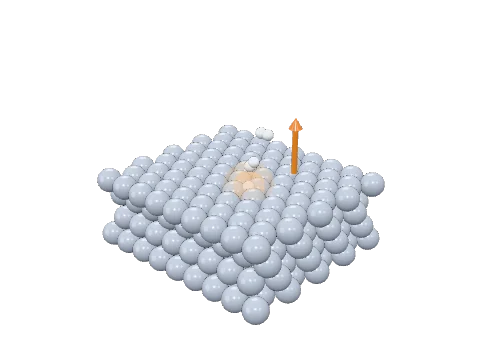
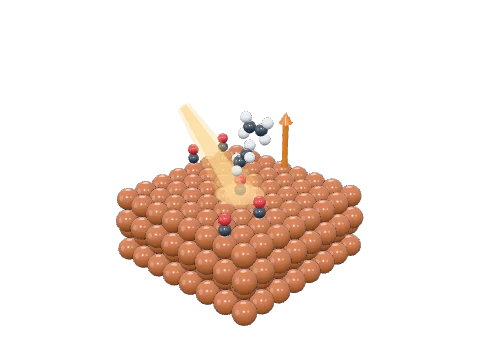
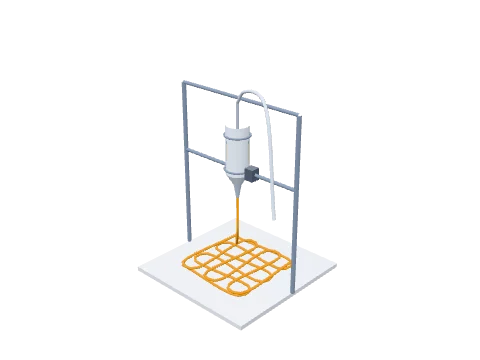
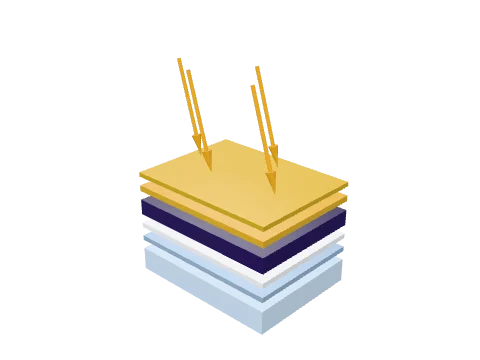
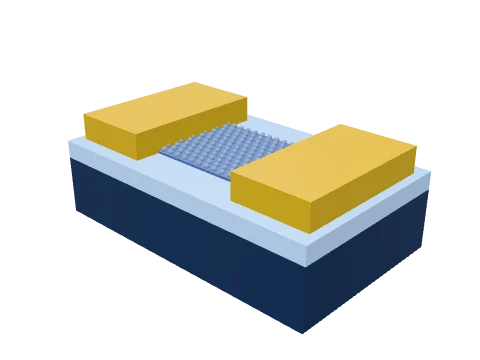
What the 3D Studio can do
| Feature | Details |
|---|---|
| Adjustable models | Cells and organelles, viruses, antibodies, liposomes and LNPs, nanoparticles atom by atom, quantum dots, 2D materials, MOFs, zeolites, scaffolds, devices and shapes |
| Molecules and proteins | PubChem compounds and RCSB PDB structures, or your own PDB, mmCIF, SDF and XYZ files |
| Crystals | CIF and POSCAR files, Materials Project search, unit cells and supercells, ball-and-stick, space-filling or polyhedra |
| Molecule brushes | DNA, RNA, chromatin, helices, strands, collagen, actin, microtubules and polymer chains along a freehand stroke |
| Modifiers | Array, displace, distribute and gradient |
| Output | PNG at 1×, 2× or 4×, GLB, or a render placed straight into a figure |
How to make a 3D render for a figure
- Open the 3D Studio and click Add.
- Pick a model, for example Nanomaterials › Gold nanoparticle, and drag it into the view.
- Change its shape, size and surface in the panel on the right.
- Choose a lighting preset and a background (white, a colour or transparent).
- Click Add render to canvas to send it to your figure, or export a PNG.
Loading only what you use
The 3D Studio has hundreds of models, but it loads the code of a model only when you add it. The Add menu shows a small picture of every model, so you see the whole library without waiting for any of it to load.
Frequently asked questions
Do I need to know Blender to use the 3D Studio?
Can I open my own 3D files?
How do I get a crystal structure?
How do I put a render in my figure?
Does it run on a laptop?
Try it in LabCanvas
Every app is free to start in your browser. Create an account and begin.
Open 3D StudioKeep reading
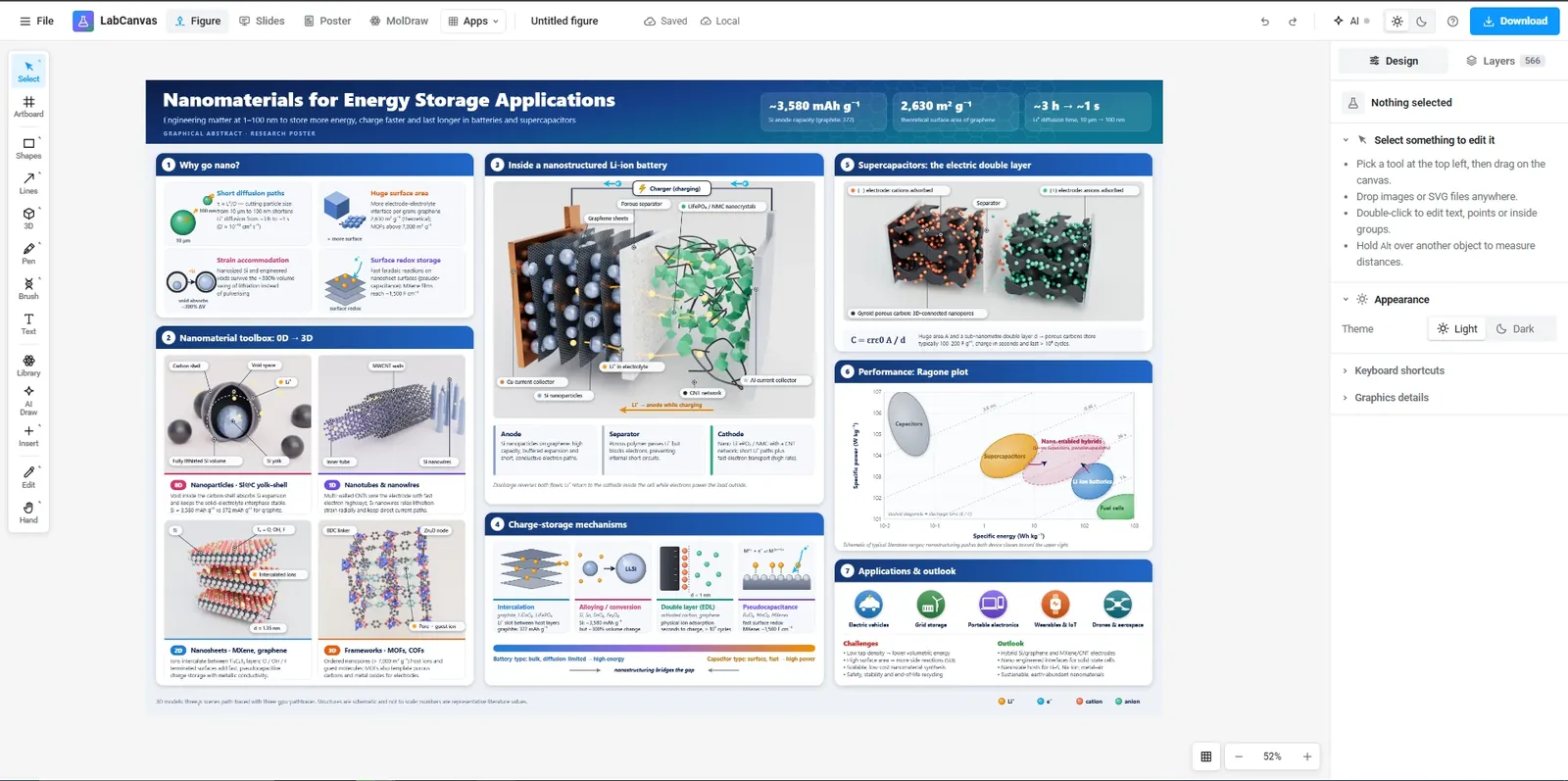
The LabCanvas Figure editor: vector scientific illustration in your browser
How to make journal figures and graphical abstracts in the LabCanvas Figure editor: vector tools, 700+ adjustable science objects, lab glassware that connects, LaTeX equations, and export at the width and DPI your journal asks for.
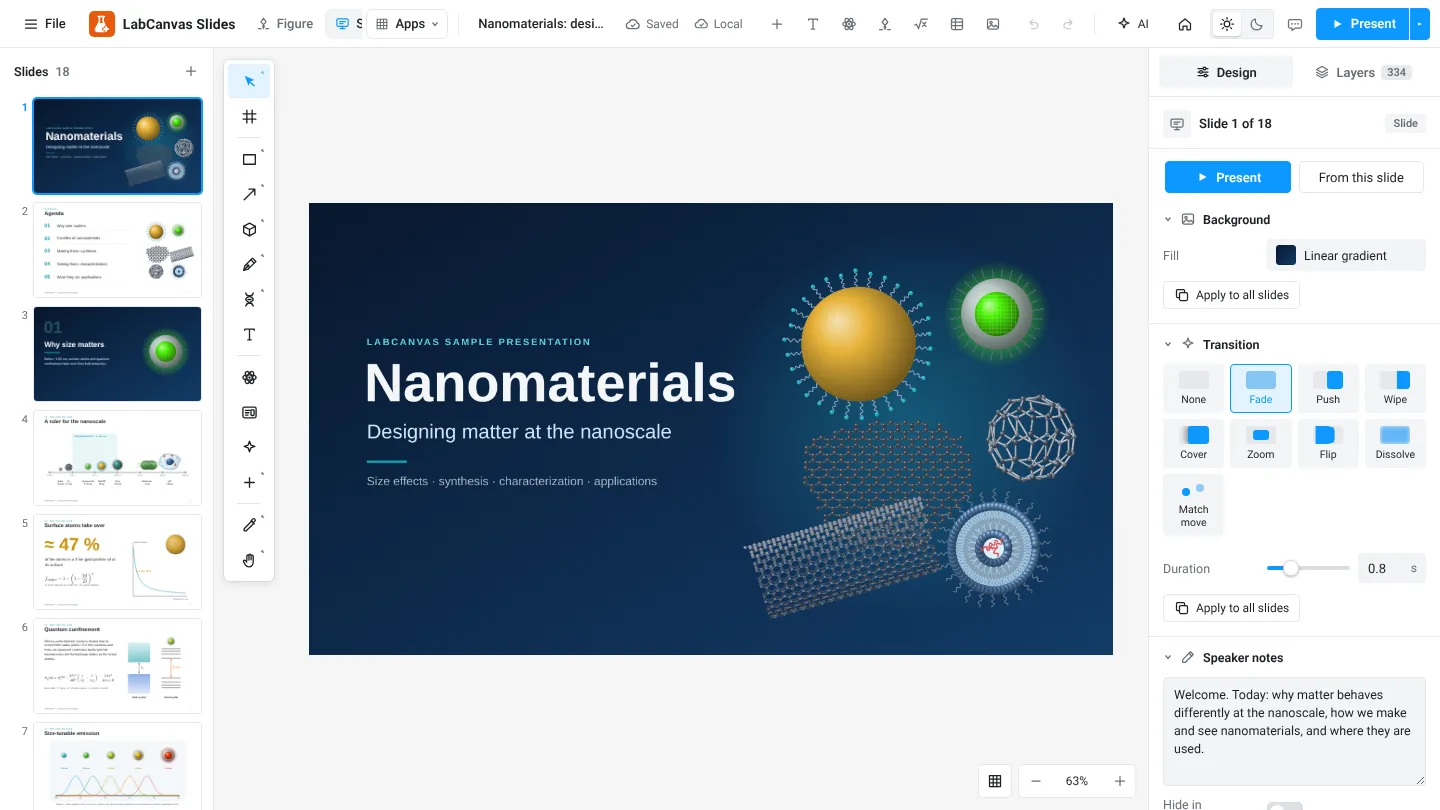
LabCanvas Slides: scientific presentations built from editable figures
How to build lab meetings, conference talks and lectures in LabCanvas Slides: a slide strip, layouts and themes, transitions and motion paths, speaker notes, full-screen presenting and a vector PDF of the deck.
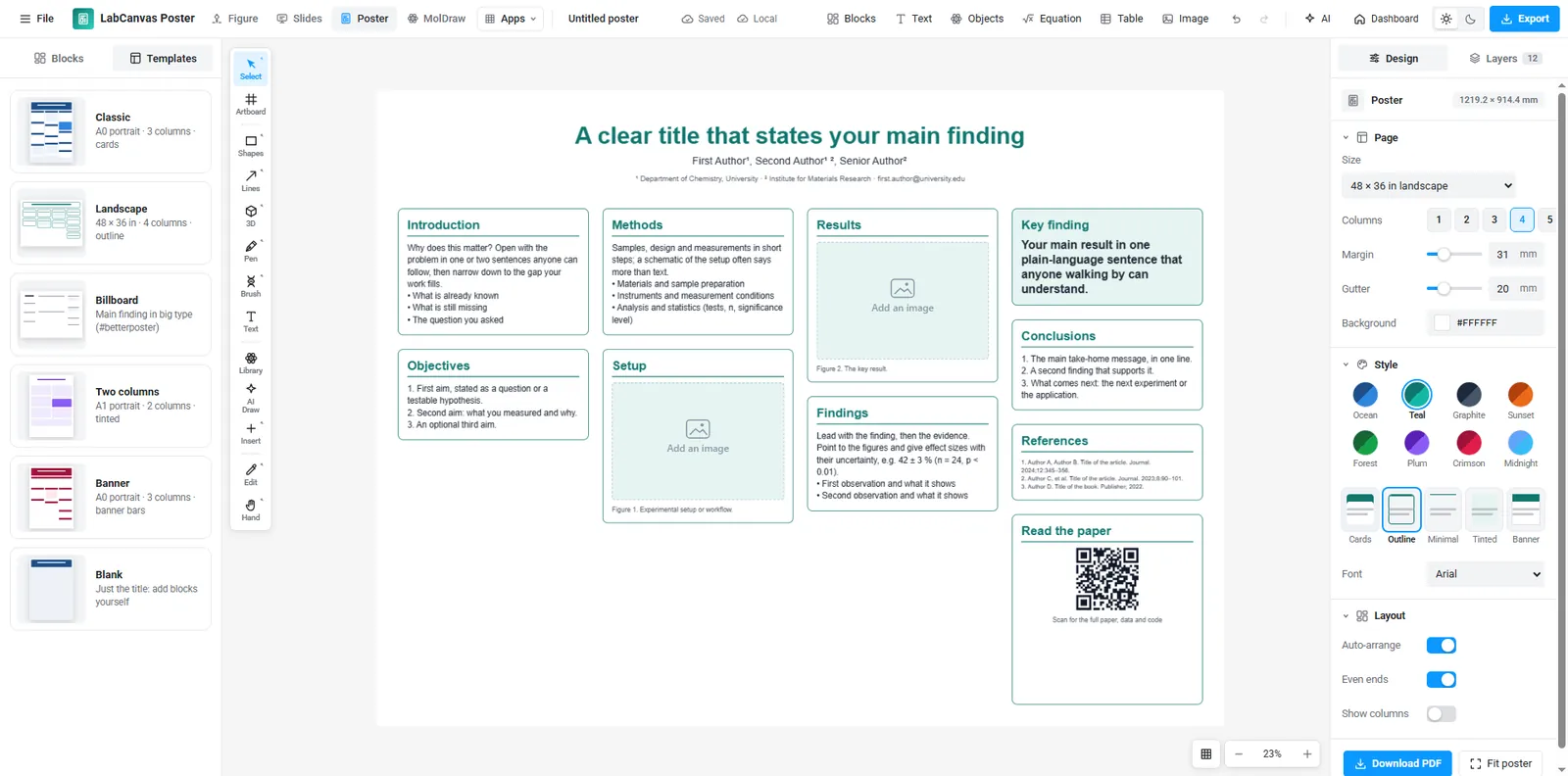
LabCanvas Research Poster: conference posters that arrange themselves
How to make an A0, A1 or 48 × 36 in research poster in LabCanvas Research Poster: blocks that stack in columns and re-flow their text, themes and block styles, QR codes, and a print-ready vector PDF.